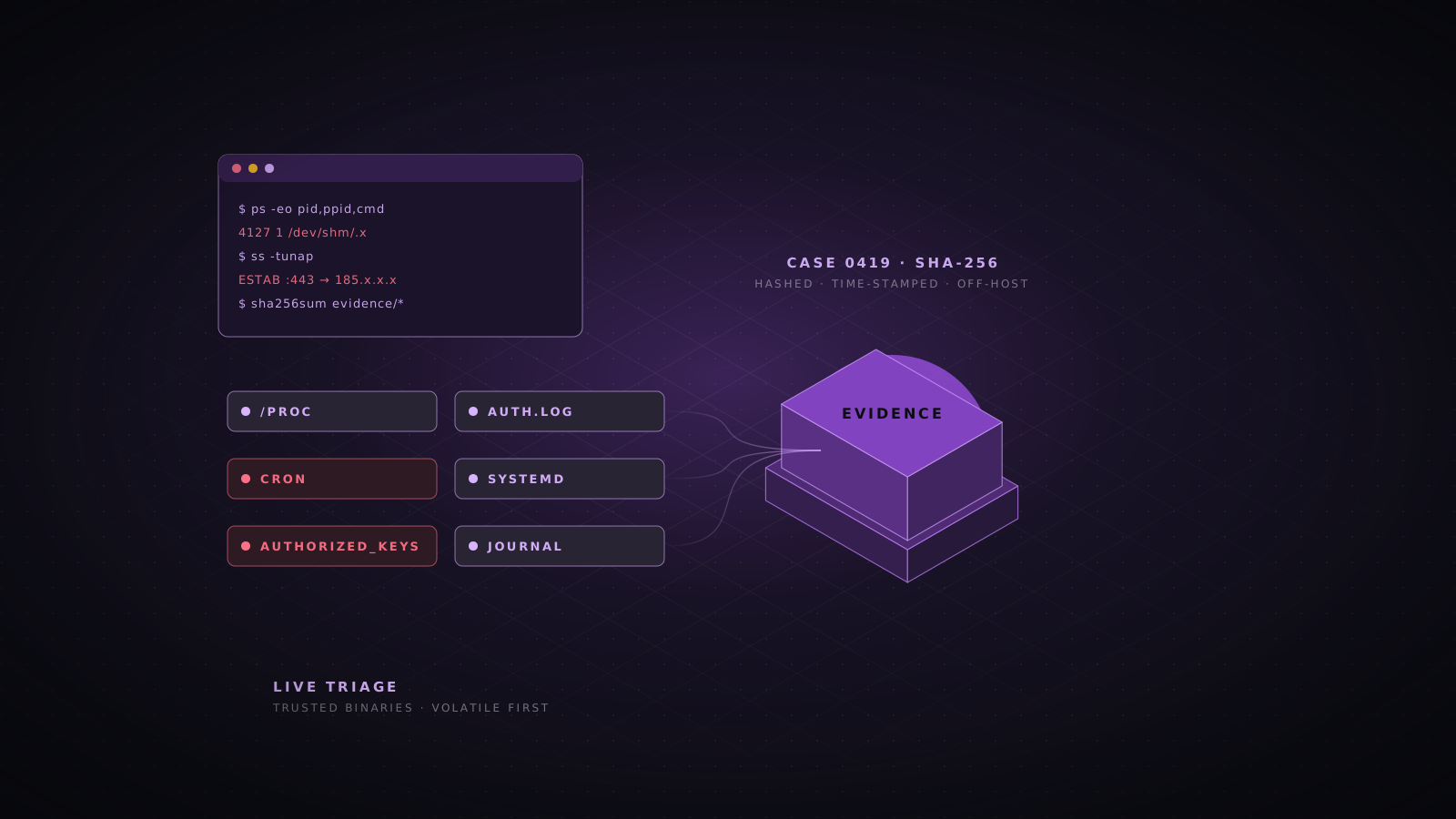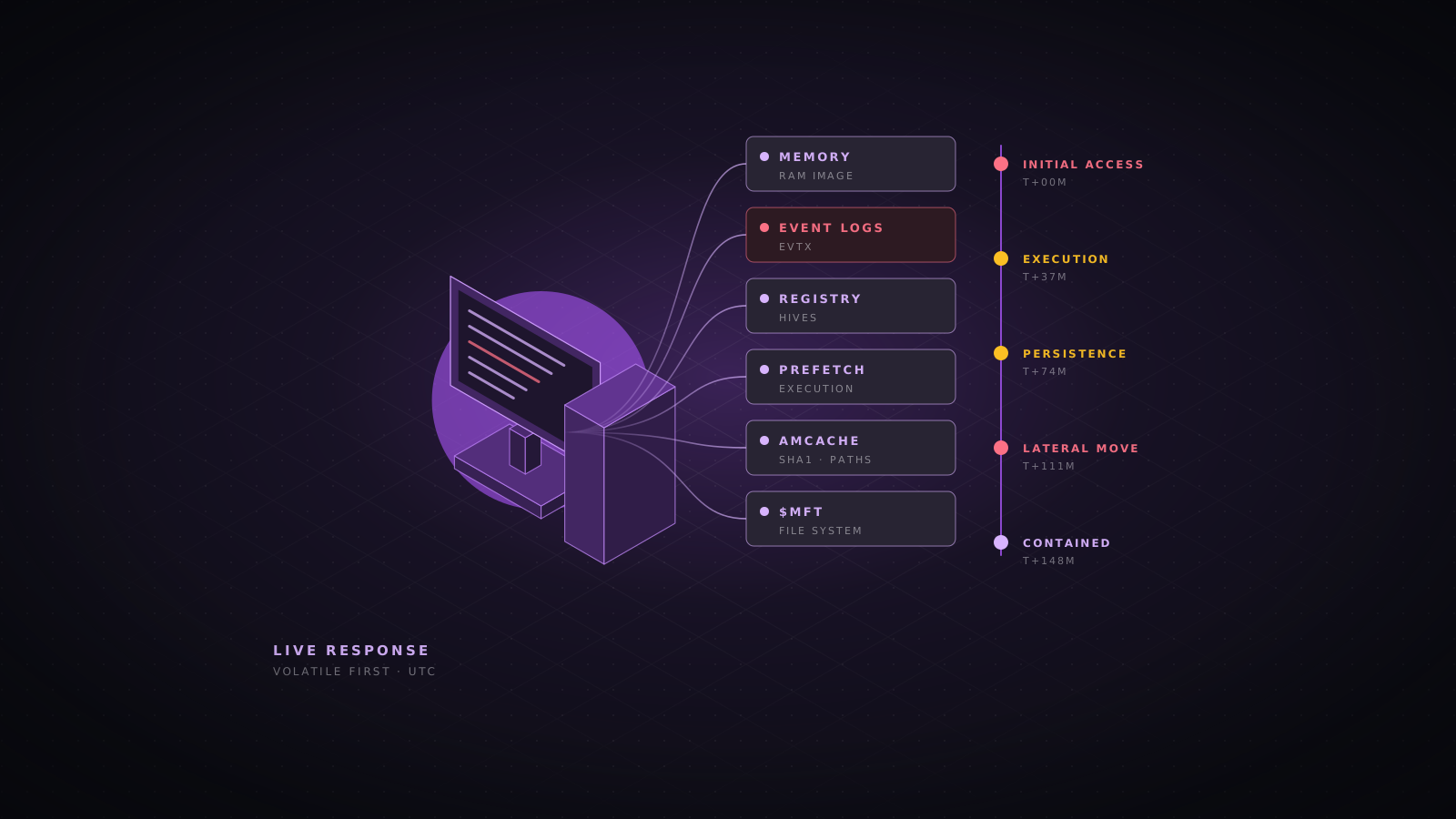
Triage is the first technical phase of incident response: a fast, structured look at a suspect Windows machine to answer four questions. Is it compromised? How did the attacker get in? What did they do and when? Which other systems and accounts are involved? A good triage answers those in hours, preserves the evidence a full forensic examination would need later, and avoids tipping off an attacker who is still active. This guide covers the order of work, the commands and the tools for doing it well on Windows 10, Windows 11 and Windows Server.
Ground rules before you touch the host
- Collect in order of volatility (RFC 3227): memory and live network state first, then running processes and sessions, then disk artifacts and logs. Rebooting, reimaging or running a full antivirus scan first destroys the evidence you need most.
- Do not log on interactively with a Domain Admin account. Interactive and RDP logons leave reusable credentials in LSASS memory on a machine the attacker may control. Use EDR live response, a dedicated incident response account with local admin rights only, or remote tooling that uses network logons.
- Run tools from trusted, read-only media or a network share, never from binaries on the suspect host, and write output to external storage or a collection share, never to the system drive.
- Record everything in UTC: each command, who ran it, when, and the SHA-256 of each file you collect. That log becomes your chain of custody and the backbone of the timeline.
- Decide early whether you are investigating quietly or containing immediately. Visible actions such as disabling accounts or killing processes tell the attacker you have found them.
- Assume more than one host is involved. Triage the first machine with an eye on indicators you can sweep across the rest of the estate.
Build the triage kit
Assemble and test the kit before you need it. Keep it on a write-protected USB drive or an access-controlled share, record the hash of every executable, and refresh it every quarter. Most of the essential tools are free.
| Tool | Purpose | Notes |
|---|---|---|
| Velociraptor | Remote live response, artifact collection and fleet-wide hunting | Free, open source; also builds offline collectors |
| KAPE | Fast targeted collection of artifacts and parsing with modules | Free from Kroll; check license terms for paid engagements |
| Eric Zimmerman tools | Parsers for MFT, registry, event logs, prefetch, Amcache, LNK, jump lists, SRUM | Free; Timeline Explorer and Registry Explorer for review |
| Sysinternals Suite | Autoruns, Process Explorer, TCPView, Sigcheck, Handle, ListDLLs | Free from Microsoft; use the command-line variants for collection |
| WinPmem or Magnet RAM Capture | Physical memory acquisition | Free; run as administrator |
| Volatility 3 and MemProcFS | Memory analysis | Free; MemProcFS mounts memory as a file system |
| Hayabusa and Chainsaw | Fast Sigma-based hunting across event logs | Free; run on exported EVTX files or live |
| FTK Imager | Disk imaging and quick file system browsing | Free; produces E01 images with verification hashes |
| YARA, THOR Lite, Loki | Signature scanning of files and memory for known tooling and malware | Free rule sets from the community and Nextron |
| Plaso (log2timeline) | Super timelines from many artifact types | Free; heavy but thorough |
| Cyber Triage | Guided triage collection and scoring for analysts | Commercial, with a free edition |
| EDR live response | Defender for Endpoint, CrowdStrike, SentinelOne consoles | Isolation, remote shell and file collection without a logon |
The first fifteen minutes
Start by establishing context. You need to know exactly which machine you are on, its time zone and clock skew, who is logged on and how long it has been running. A machine that rebooted an hour ago has lost its memory evidence, and a clock that is five minutes off will shift every event you correlate with other systems.
$case = "E:\IR-2026-031\$env:COMPUTERNAME"
New-Item -ItemType Directory -Path $case -Force | Out-Null
Start-Transcript -Path "$case\transcript.txt"

(Get-Date).ToUniversalTime().ToString('o')
hostname; whoami /all
Get-TimeZone
w32tm /query /status
Get-CimInstance Win32_OperatingSystem |
  Select-Object Caption, Version, BuildNumber, InstallDate, LastBootUpTime
Get-CimInstance Win32_ComputerSystem | Select-Object Domain, Manufacturer, Model
Get-NetIPConfiguration | Format-List InterfaceAlias, IPv4Address, IPv4DefaultGateway, DNSServer
quser 2>$null
Then decide on containment. If the machine has an EDR agent, network isolation from the console is usually the best first move: it cuts the attacker off while keeping the machine running and reachable by the EDR, so memory and live state survive. Without EDR, weigh the risk of ongoing damage, such as encryption in progress or data leaving, against the evidence and visibility you lose by unplugging the network. Never simply power the machine off.
| Action | Stops the attacker | Evidence impact | Use when |
|---|---|---|---|
| EDR network isolation | Yes, except the EDR channel | None; memory and state preserved | Default choice when EDR is present |
| Firewall or switch port block | Yes | Low; live response needs local access | No EDR, but you can work at the console |
| Unplug network cable or disable Wi-Fi | Yes | Low; may trigger attacker cleanup logic | Active damage and no better option |
| Suspend a virtual machine | Yes | None; memory saved to disk (.vmem or .vmsn) | Virtualized servers; collect the memory file |
| Shut down or pull power | Yes | High; memory lost, encryption keys lost | Avoid; only to stop destruction in progress |
Capture memory first
Memory holds what the disk does not: injected code, fileless malware, decrypted payloads, command history of running shells, network connections that have since closed, and sometimes encryption keys. Capture it before anything else changes. Expect roughly one minute per 4 to 8 GB of RAM to a fast USB 3 drive.
# WinPmem (run from the kit drive, write to the evidence drive)
E:\tools\winpmem_mini_x64_rc2.exe E:\IR-2026-031\HOST01\HOST01.raw

Get-FileHash -Algorithm SHA256 E:\IR-2026-031\HOST01\HOST01.raw |
  Export-Csv E:\IR-2026-031\HOST01\hashes.csv -NoTypeInformation -Append

# Velociraptor alternative, run remotely from the server console:
#   artifact Windows.Memory.Acquisition
The page file and hibernation file also contain memory pages and are worth collecting with the disk artifacts. They are locked while Windows runs, so use KAPE, Velociraptor or FTK Imager, which read them through raw disk access. On virtual machines, a snapshot that includes memory or a suspend operation produces a memory file that Volatility can read directly.
vol -f HOST01.raw windows.info
vol -f HOST01.raw windows.pstree                 # parent and child relationships
vol -f HOST01.raw windows.psscan                 # finds unlinked and exited processes too
vol -f HOST01.raw windows.cmdline
vol -f HOST01.raw windows.netscan                # connections and listeners with PIDs
vol -f HOST01.raw windows.malfind                # executable private memory, injected code
vol -f HOST01.raw windows.svcscan
vol -f HOST01.raw windows.dlllist --pid 4416
vol -f HOST01.raw windows.handles --pid 4416
vol -f HOST01.raw -o out windows.dumpfiles --pid 4416

# MemProcFS: browse processes, handles and timelines as files under M:\
MemProcFS.exe -device HOST01.raw -forensic 1
Compare pslist against psscan: a process found only by psscan was unlinked from the active process list, which is a rootkit technique, or has already exited. In malfind results, executable memory regions that begin with an MZ header or contain shellcode in processes such as explorer.exe, svchost.exe or rundll32.exe deserve a closer look, although JIT compilers in browsers and .NET produce false positives.
Live response: processes, network and sessions
With memory safe, record the live state using built-in commands. These outputs are quick to read during the incident and easy to compare across hosts. Save each one as CSV so you can sort and filter it later in Timeline Explorer or a spreadsheet.
Get-CimInstance Win32_Process |
  Select-Object ProcessId, ParentProcessId, Name, CommandLine, ExecutablePath,
    @{n='Created';e={$_.CreationDate.ToUniversalTime()}},
    @{n='Owner';e={(Invoke-CimMethod -InputObject $_ -MethodName GetOwner).User}} |
  Export-Csv "$case\processes.csv" -NoTypeInformation

Get-Process | Where-Object Path | Select-Object -ExpandProperty Path -Unique |
  ForEach-Object { Get-FileHash -Algorithm SHA256 $_ } |
  Export-Csv "$case\process-hashes.csv" -NoTypeInformation

tasklist /svc /fo csv > "$case\tasklist-svc.csv"Get-NetTCPConnection |
Select-Object LocalAddress, LocalPort, RemoteAddress, RemotePort, State, OwningProcess,
@{n='Process';e={(Get-Process -Id $_.OwningProcess -ErrorAction SilentlyContinue).Name}},
CreationTime |
Export-Csv "$case\tcp.csv" -NoTypeInformation
Get-NetUDPEndpoint | Select-Object LocalAddress, LocalPort, OwningProcess |
Export-Csv "$case\udp.csv" -NoTypeInformation
netstat -anob > "$case\netstat.txt"
Get-DnsClientCache | Export-Csv "$case\dns-cache.csv" -NoTypeInformation
Get-NetNeighbor | Export-Csv "$case\arp.csv" -NoTypeInformation
route print > "$case\routes.txt"
Get-SmbSession | Export-Csv "$case\smb-sessions.csv" -NoTypeInformation # who is connected to us
Get-SmbMapping; net use # where we are connected
Get-SmbShare | Export-Csv "$case\shares.csv" -NoTypeInformation
netsh advfirewall show allprofiles > "$case\firewall.txt"The DNS client cache is short-lived and often shows command and control domains that no longer have an open connection. Inbound SMB sessions show which machines and accounts are connected to this host right now, which is direct evidence of lateral movement in progress.
quser; qwinsta
Get-CimInstance Win32_LogonSession |
  Select-Object LogonId, LogonType, AuthenticationPackage, StartTime
Get-LocalUser | Select-Object Name, Enabled, LastLogon, PasswordLastSet, Description
Get-LocalGroupMember Administrators
Get-LocalGroupMember 'Remote Desktop Users'
Get-ChildItem C:\Users -Directory | Select-Object Name, CreationTime, LastWriteTime
klist sessions
Look for a local account created recently, an unexpected member of the Administrators group, or a user profile folder whose creation time falls inside the incident window. A new profile folder means that account logged on interactively to this machine for the first time.
What suspicious processes look like
- Wrong parent: Office applications, browsers, PDF readers or w3wp.exe spawning cmd.exe, powershell.exe, wscript.exe, mshta.exe or rundll32.exe.
- Wrong path: svchost.exe, lsass.exe or csrss.exe running from anywhere other than C:\Windows\System32, or binaries running from AppData, ProgramData, Temp, Public or the Recycle Bin.
- Look-alike names: scvhost.exe, lsasss.exe, svch0st.exe, or a correct name with an extra space.
- Encoded or obfuscated command lines: powershell with EncodedCommand, IEX and DownloadString, long Base64 strings, or heavy use of character escaping.
- Unsigned binaries in places where everything else is signed, and remote access tools nobody in IT installed, such as AnyDesk, ScreenConnect, Atera or ngrok.
- Processes with network connections that should never have them, such as notepad.exe or rundll32.exe talking to the internet.
$b64 = 'SQBFAFgAIAAoAE4AZQB3AC0ATwBiAGoAZQBjAHQAIABOAGUAdAAuAFcAZQBiAEMAbABpAGUAbgB0ACkA'
[Text.Encoding]::Unicode.GetString([Convert]::FromBase64String($b64))E:\tools\sigcheck64.exe -accepteula -nobanner -u -e -s -c -h C:\Users > "$case\unsigned-users.csv"
E:\tools\sigcheck64.exe -accepteula -nobanner -u -e -s -c -h C:\ProgramData > "$case\unsigned-programdata.csv"
# -u unsigned only, -e executables only, -s recurse, -c CSV, -h hashes
# Add -v to look hashes up on VirusTotal. It sends hashes only, never the files.Hunting persistence
Attackers who plan to stay make sure their access survives a reboot and a password reset. Windows offers hundreds of places to do that, but in practice most intrusions use a small set: Run keys, scheduled tasks, services, WMI subscriptions, startup folders and new accounts. Start with Autoruns, which checks nearly all of them at once, then confirm the interesting entries manually.
E:\tools\autorunsc64.exe -accepteula -nobanner -a * -c -h -s -m '*' > "$case\autoruns.csv"
# -a *   every category       -c  CSV output        -h  file hashes
# -s     verify signatures    -m  hide Microsoft-signed entries
# '*'    include every user profile, not only the current one
Sort the CSV by signer and look first at unsigned entries, entries pointing into user-writable folders, and entries whose launch string calls a script host or interpreter. Hiding Microsoft entries removes noise, but remember that attackers often abuse signed Microsoft binaries, so an entry launching rundll32.exe or mshta.exe with an unusual argument still matters even when the binary itself is signed.
$keys = @(
  'HKLM:\Software\Microsoft\Windows\CurrentVersion\Run',
  'HKLM:\Software\Microsoft\Windows\CurrentVersion\RunOnce',
  'HKLM:\Software\WOW6432Node\Microsoft\Windows\CurrentVersion\Run',
  'HKCU:\Software\Microsoft\Windows\CurrentVersion\Run',
  'HKCU:\Software\Microsoft\Windows\CurrentVersion\RunOnce',
  'HKLM:\Software\Microsoft\Windows NT\CurrentVersion\Winlogon',
  'HKLM:\System\CurrentControlSet\Control\Session Manager'
)
foreach ($k in $keys) { "== $k"; Get-ItemProperty -Path $k -ErrorAction SilentlyContinue }

# Debugger hijacks: a program that runs instead of, or when, the target starts
Get-ChildItem 'HKLM:\Software\Microsoft\Windows NT\CurrentVersion\Image File Execution Options' |
  Get-ItemProperty | Where-Object { $_.Debugger -or $_.GlobalFlag } |
  Select-Object PSChildName, Debugger, GlobalFlag
In the Winlogon key, Userinit should be C:\Windows\system32\userinit.exe followed by a comma and Shell should be explorer.exe. Anything appended to either runs at every logon. In Session Manager, check BootExecute, which should normally contain only autocheck autochk *. Image File Execution Options entries with a Debugger value on accessibility tools such as sethc.exe or utilman.exe are a classic backdoor that opens a SYSTEM shell from the logon screen.
Get-ScheduledTask | Where-Object State -ne 'Disabled' |
  Select-Object TaskPath, TaskName, State, Author,
    @{n='Run';e={($_.Actions | ForEach-Object { "$($_.Execute) $($_.Arguments)" }) -join ' | '}},
    @{n='User';e={$_.Principal.UserId}} |
  Export-Csv "$case\tasks.csv" -NoTypeInformation

# Raw task XML, including tasks hidden by deleting their SD registry value
Get-ChildItem C:\Windows\System32\Tasks -Recurse -File |
Sort-Object LastWriteTime -Descending | Select-Object -First 30 FullName, LastWriteTimeGet-CimInstance Win32_Service |
Select-Object Name, DisplayName, State, StartMode, StartName, PathName |
Export-Csv "$case\services.csv" -NoTypeInformation
# Services launching shells, scripts or binaries from writable folders
Get-CimInstance Win32_Service | Where-Object {
$_.PathName -match 'cmd(\.exe)?\s*/c|powershell|mshta|rundll32|\\Users\\|\\ProgramData\\|\\Temp\\|\\AppData\\'
} | Select-Object Name, StartMode, PathNameService names generated by tools such as PsExec, Impacket or Cobalt Strike are often random strings of letters or digits, and their binary path is frequently a command line rather than an executable. Check for unquoted service paths with spaces as well, since a writable folder in that path is a privilege escalation route that attackers also use for persistence.
Get-CimInstance -Namespace root\subscription -ClassName __EventFilter |
  Select-Object Name, Query
Get-CimInstance -Namespace root\subscription -ClassName CommandLineEventConsumer |
  Select-Object Name, CommandLineTemplate, ExecutablePath
Get-CimInstance -Namespace root\subscription -ClassName ActiveScriptEventConsumer |
  Select-Object Name, ScriptingEngine, ScriptText
Get-CimInstance -Namespace root\subscription -ClassName __FilterToConsumerBinding

Get-BitsTransfer -AllUsers | Select-Object DisplayName, JobState, OwnerAccount, FileList

Get-ChildItem 'C:\ProgramData\Microsoft\Windows\Start Menu\Programs\StartUp',
  'C:\Users\*\AppData\Roaming\Microsoft\Windows\Start Menu\Programs\Startup' -Force -ErrorAction SilentlyContinue |
  Select-Object FullName, CreationTime, LastWriteTime
A clean workstation usually has one or two built-in WMI filters and consumers, such as SCM Event Log Consumer. Any CommandLineEventConsumer or ActiveScriptEventConsumer you cannot attribute to management software is highly suspicious, because WMI persistence leaves no file in a startup location and survives reboots.
Get-MpComputerStatus |
  Select-Object AMServiceEnabled, RealTimeProtectionEnabled, IsTamperProtected, AntivirusSignatureLastUpdated
Get-MpPreference | Select-Object ExclusionPath, ExclusionProcess, ExclusionExtension, ExclusionIpAddress
Get-MpThreatDetection | Sort-Object InitialDetectionTime -Descending | Select-Object -First 20
Get-WinEvent -FilterHashtable @{LogName='Microsoft-Windows-Windows Defender/Operational'; Id=1116,1117,5001,5007} -MaxEvents 50 |
  Select-Object TimeCreated, Id, Message
Attackers add Defender exclusions for their staging folder or disable real-time protection before dropping tools. Event 5007 records every configuration change, including the new exclusion path, and 5001 records real-time protection being turned off. Exclusions for whole drives, user profile folders or common tool extensions such as .ps1 are red flags. Current Defender platform versions hide the exclusion list from non-administrators, so collect it from an elevated session.
- Other places worth checking when the common ones are clean: COM object hijacks under HKCU\Software\Classes\CLSID, Office add-ins and templates (Normal.dotm), browser extensions, netsh helper DLLs, print monitors and LSA authentication or notification packages.
- Accounts are persistence too: a new local administrator, a re-enabled disabled account, or a password set to never expire on a service account all let the attacker back in after you remove their malware.
- Remote access software counts as persistence. Check installed programs and services for remote monitoring and management tools that your IT team does not use.
Event logs that matter
Windows event logs are the closest thing to a flight recorder on the host. Export them early: attackers clear them, and default log sizes on workstations roll over within days. Copy the whole log folder, which preserves every channel including those you did not think to ask for.
New-Item -ItemType Directory "$case\evtx" -Force | Out-Null
foreach ($log in 'Security','System','Application',
  'Microsoft-Windows-PowerShell/Operational','Microsoft-Windows-Sysmon/Operational',
  'Microsoft-Windows-TaskScheduler/Operational','Microsoft-Windows-Windows Defender/Operational',
  'Microsoft-Windows-TerminalServices-LocalSessionManager/Operational',
  'Microsoft-Windows-TerminalServices-RemoteConnectionManager/Operational',
  'Microsoft-Windows-WMI-Activity/Operational','Microsoft-Windows-WinRM/Operational') {
  $name = ($log -replace '[/ ]', '_') + '.evtx'
  wevtutil epl $log "$case\evtx\$name" 2>$null
}

# Or simply copy every channel
robocopy C:\Windows\System32\winevt\Logs "$case\evtx-all" *.evtx /COPY:DAT /R:0 /W:0| Event ID | Log | What it tells you |
|---|---|---|
| 4624 / 4625 | Security | Successful and failed logons, with logon type, source address and process |
| 4648 | Security | Logon with explicit credentials, such as runas or a tool passing a password |
| 4672 | Security | Special privileges assigned at logon: an administrator-equivalent session |
| 4688 | Security | Process creation; includes the command line only if that policy is enabled |
| 4697 / 7045 | Security / System | A service was installed: PsExec, Impacket and many backdoors |
| 4698 / 4702 | Security | Scheduled task created or updated, with the full task XML |
| 4720 / 4722 / 4738 | Security | Account created, enabled or changed |
| 4728 / 4732 / 4756 | Security | Member added to a global, local or universal security group |
| 4768 / 4769 / 4771 | Security (DC) | Kerberos ticket requests and pre-authentication failures |
| 4776 | Security | NTLM credential validation |
| 1102 / 104 | Security / System | Audit log or system log cleared |
| 4104 | PowerShell Operational | Script block logging: the code PowerShell actually ran, after decoding |
| 21 / 24 / 25 | TS LocalSessionManager | RDP session logon, disconnect and reconnect, with source address |
| 1149 | TS RemoteConnectionManager | RDP network authentication succeeded |
| 106 / 140 / 200 | TaskScheduler Operational | Task registered, updated and launched |
| 5857 to 5861 | WMI-Activity Operational | WMI provider loading; 5861 records a permanent event subscription |
| 1116 / 1117 / 5001 / 5007 | Defender Operational | Detection, action taken, real-time protection off, settings changed |
| 1 / 3 / 10 / 11 / 13 / 22 | Sysmon | Process create, network connect, process access, file create, registry set, DNS query |
| Type | Name | Typical source |
|---|---|---|
| 2 | Interactive | Keyboard at the console; credentials cached in LSASS |
| 3 | Network | SMB share access, PsExec, WMI, most remote tools; no reusable credentials left behind |
| 4 | Batch | Scheduled tasks |
| 5 | Service | Services starting under an account |
| 7 | Unlock | Workstation unlocked |
| 8 | NetworkCleartext | Basic authentication such as IIS; password sent in clear to the host |
| 9 | NewCredentials | runas /netonly and some pass-the-hash tooling |
| 10 | RemoteInteractive | Remote Desktop |
| 11 | CachedInteractive | Domain logon with cached credentials while the DC was unreachable |
Event properties are positional and differ between event IDs, so parse the XML by field name rather than by index. This pattern works for any event and makes the output easy to filter.
Get-WinEvent -FilterHashtable @{LogName='Security'; Id=4624; StartTime=(Get-Date).AddDays(-7)} |
  ForEach-Object {
    $d = @{}
    ([xml]$_.ToXml()).Event.EventData.Data | ForEach-Object { $d[$_.Name] = $_.'#text' }
    [pscustomobject]@{
      TimeUtc = $_.TimeCreated.ToUniversalTime()
      User    = "$($d.TargetDomainName)\$($d.TargetUserName)"
      Type    = $d.LogonType
      Source  = $d.IpAddress
      Host    = $d.WorkstationName
      Auth    = $d.AuthenticationPackageName
      Process = $d.ProcessName
    }
  } | Where-Object { $_.Type -in '3','10' -and $_.Source -notin '-','127.0.0.1','::1' } |
Export-Csv "$case\logons.csv" -NoTypeInformationGet-WinEvent -FilterHashtable @{LogName='Security'; Id=1102} -ErrorAction SilentlyContinue
Get-WinEvent -FilterHashtable @{LogName='System'; Id=104,7045} -ErrorAction SilentlyContinue |
Select-Object TimeCreated, Id, Message | Format-List
Get-WinEvent -FilterHashtable @{LogName='Security'; Id=4698} -ErrorAction SilentlyContinue |
Select-Object TimeCreated, Message | Format-List
Get-WinEvent -FilterHashtable @{LogName='Microsoft-Windows-PowerShell/Operational'; Id=4104} -MaxEvents 500 |
Where-Object Message -match 'DownloadString|IEX|Invoke-Expression|FromBase64String|Net.WebClient|-enc|Bypass|Mimikatz|Invoke-' |
Select-Object TimeCreated, Message | Format-ListReading events one query at a time does not scale past the first host. Sigma-based hunting tools apply thousands of community detection rules to exported logs in minutes and produce a timeline of only the interesting events. Run them on the exported EVTX files on your analysis workstation, not on the suspect host.
# Hayabusa: Sigma and built-in rules, timeline output
hayabusa.exe update-rules
hayabusa.exe csv-timeline -d E:\IR-2026-031\HOST01\evtx-all -o host01-hayabusa.csv -p verbose -U -w
hayabusa.exe logon-summary -d E:\IR-2026-031\HOST01\evtx-all

# Chainsaw: Sigma hunting plus fast keyword search
chainsaw hunt E:\IR-2026-031\HOST01\evtx-all -s sigma\ --mapping mappings\sigma-event-logs-all.yml -r rules\ --csv --output host01-chainsaw
chainsaw search mimikatz -i E:\IR-2026-031\HOST01\evtx-all

# EvtxECmd: every event normalized into one CSV for Timeline Explorer
EvtxECmd.exe -d E:\IR-2026-031\HOST01\evtx-all --csv E:\out --csvf host01-evtx.csv
Start your review at the highest severity Hayabusa or Chainsaw hits, note the timestamps, and then read everything that happened in EvtxECmd output a few minutes either side. Detections tell you where to look; the surrounding ordinary events tell you what really happened.
Evidence of execution
When logs are missing or cleared, Windows still remembers a great deal about which programs ran, when, and from where. Each artifact has gaps and quirks, so the strongest conclusions come from two or three artifacts agreeing with each other.
| Artifact | Location | What it proves | Parser |
|---|---|---|---|
| Prefetch | C:\Windows\Prefetch\*.pf | Program ran; run count, last eight run times, files it loaded. Disabled by default on Windows Server | PECmd |
| Amcache | C:\Windows\AppCompat\Programs\Amcache.hve | Program was present, with full path and SHA-1 hash, often with first-run time | AmcacheParser |
| ShimCache (AppCompatCache) | SYSTEM hive | File existed and was seen by the shim engine; on Windows 10 and later not proof of execution | AppCompatCacheParser |
| BAM / DAM | SYSTEM\CurrentControlSet\Services\bam\State\UserSettings | Last execution time per user SID for recent programs | RECmd, Registry Explorer |
| UserAssist | NTUSER.DAT | GUI programs a user launched, with count and last run time | RECmd |
| SRUM | C:\Windows\System32\sru\SRUDB.dat | Per-application network bytes sent and received, hourly, for about 30 to 60 days | SrumECmd |
| LNK files and jump lists | AppData\Roaming\Microsoft\Windows\Recent | Files and folders a user opened, including on USB and network shares | LECmd, JLECmd |
| ShellBags | UsrClass.dat, NTUSER.DAT | Folders a user browsed, even after deletion | SBECmd, ShellBags Explorer |
| PowerShell history | AppData\Roaming\Microsoft\Windows\PowerShell\PSReadLine\ConsoleHost_history.txt | Commands typed into interactive PowerShell sessions | Any text editor |
| RDP bitmap cache | AppData\Local\Microsoft\Terminal Server Client\Cache | Screen fragments of outbound RDP sessions from this host | bmc-tools |
PECmd.exe -d C:\Windows\Prefetch --csv E:\out --csvf prefetch.csv
AmcacheParser.exe -f C:\Windows\AppCompat\Programs\Amcache.hve -i --csv E:\out
AppCompatCacheParser.exe --csv E:\out --csvf shimcache.csv
SrumECmd.exe -d E:\collect\C --csv E:\out
RECmd.exe -d E:\collect\C --bn BatchExamples\Kroll_Batch.reb --csv E:\out
LECmd.exe -d E:\collect\C\Users --csv E:\out
JLECmd.exe -d E:\collect\C\Users --csv E:\out

# PowerShell history for every user
Get-ChildItem C:\Users\*\AppData\Roaming\Microsoft\Windows\PowerShell\PSReadLine\ConsoleHost_history.txt -Force |
  ForEach-Object { "===== $($_.FullName)"; Get-Content $_.FullName }
The Amcache SHA-1 hash is valuable because it survives deletion of the file. An attacker who cleaned up their tools after use often leaves the hash behind, and you can search it in VirusTotal or your threat intelligence platform without having the binary.
File system triage
The NTFS Master File Table records every file on the volume with four timestamps in two separate attributes. The USN journal records every create, rename, write and delete for the past days or weeks. Together they show staging folders, tool drops, renamed malware and mass encryption, even after the files are gone.
$since = (Get-Date).AddDays(-14)
Get-ChildItem C:\Users, C:\ProgramData, C:\Windows\Temp, C:\PerfLogs, 'C:\$Recycle.Bin' -Recurse -Force -File -ErrorAction SilentlyContinue -Include *.exe,*.dll,*.ps1,*.bat,*.cmd,*.vbs,*.js,*.hta,*.lnk,*.iso,*.zip,*.7z,*.rar |
  Where-Object { $_.CreationTime -gt $since -or $_.LastWriteTime -gt $since } |
  Select-Object FullName, Length, CreationTimeUtc, LastWriteTimeUtc |
  Sort-Object CreationTimeUtc | Export-Csv "$case\recent-files.csv" -NoTypeInformation

# Where did a file come from? Mark of the Web stores the download URL
Get-Content C:\Users\bob\Downloads\invoice.iso -Stream Zone.IdentifierMFTECmd.exe -f 'E:\collect\C\$MFT' --csv E:\out --csvf mft.csv
MFTECmd.exe -f 'E:\collect\C\$Extend\$J' --csv E:\out --csvf usn.csv
RBCmd.exe -d 'E:\collect\C\$Recycle.Bin' --csv E:\out # deleted file names and times- Timestomping: attackers change file times to blend in. The $STANDARD_INFORMATION timestamps are easy to change; $FILE_NAME timestamps are not. MFTECmd flags records where the creation time in $SI is earlier than in $FN, or where sub-second precision is all zeros.
- Staging folders: a burst of archive files (zip, 7z, rar) in a single folder shortly before large outbound traffic in SRUM is a common exfiltration pattern.
- Volume shadow copies: run vssadmin list shadows. A sudden absence of shadow copies, together with vssadmin, wmic shadowcopy or wbadmin commands in 4688 or Sysmon events, points to ransomware preparation.
- Common attacker folders: C:\PerfLogs, C:\Users\Public, C:\ProgramData, C:\Windows\Temp and the root of C:\, often with names chosen to look like system folders.
yara64.exe -r -s -w E:\rules\index.yar C:\Users\Public C:\ProgramData C:\Windows\Temp > "$case\yara-files.txt"

# Scan a running process by PID
yara64.exe -s E:\rules\cobaltstrike.yar 4416

# Loki and THOR Lite bundle curated rules and IOC lists
loki.exe -p C:\ --noprocscan --csv
Collecting a triage image
A triage image is a targeted copy of the artifacts that matter, usually 1 to 5 GB instead of a full disk. It takes minutes rather than hours, can be pulled over the network, and is enough to answer most investigative questions. Collect a full disk image as well only when the case may go to court or the triage image leaves important questions open.
E:\KAPE\kape.exe --tsource C: --tdest E:\IR-2026-031\%m\tout --target KapeTriage --vhdx %m --zv false --msource E:\IR-2026-031\%m\tout --mdest E:\IR-2026-031\%m\mout --module !EZParser

# Add memory-related files and browser history when relevant
E:\KAPE\kape.exe --tsource C: --tdest E:\IR-2026-031\%m\extra --target FileSystem,WebBrowsers,PowerShellConsole --vhdx %m-extra
KapeTriage gathers the MFT, USN journal, registry hives, event logs, prefetch, Amcache, SRUM, LNK files, jump lists and more, using raw disk reads to copy locked files. The EZParser module runs the Eric Zimmerman parsers over the copy, so you have CSVs ready for Timeline Explorer by the time collection finishes. The %m variable expands to the machine name, which keeps multi-host collections tidy.
For more than a handful of machines, Velociraptor is the better tool. A single server manages thousands of endpoints, collections run as hunts across the whole estate, and an offline collector can be built as one executable for machines without an agent. Recent releases name the KAPE-style target artifact Windows.Triage.Targets; older ones call it Windows.KapeFiles.Targets.
| Artifact | Collects |
|---|---|
| Windows.Triage.Targets | KAPE-compatible file collection (KapeTriage, SANS_Triage and others) |
| Windows.System.Pslist | Processes with command lines, hashes and signatures |
| Windows.Network.NetstatEnriched | Connections joined to process details |
| Windows.Sysinternals.Autoruns | Autoruns output from every endpoint |
| Windows.Persistence.PermanentWMIEvents | WMI filters, consumers and bindings |
| Windows.System.TaskScheduler | Scheduled task XML and actions |
| Windows.EventLogs.Hayabusa | Hayabusa run on the endpoint, results returned to the server |
| Windows.Detection.Yara.Process | YARA rules against process memory |
| Windows.Memory.Acquisition | Full memory image |
If you have neither tool available, a short PowerShell script can capture the essentials in a consistent way. It is no substitute for a proper collector, but it is far better than ad hoc commands typed under pressure, and it hashes its own output.
param([string]$Out = "E:\IR\$env:COMPUTERNAME-$((Get-Date).ToUniversalTime().ToString('yyyyMMddTHHmmssZ'))")
New-Item -ItemType Directory -Path $Out -Force | Out-Null
Start-Transcript "$Out\transcript.txt"

Get-CimInstance Win32_Process | Select-Object ProcessId,ParentProcessId,Name,CommandLine,ExecutablePath,CreationDate | Export-Csv "$Out\processes.csv" -NoTypeInformation
Get-NetTCPConnection | Select-Object LocalAddress,LocalPort,RemoteAddress,RemotePort,State,OwningProcess,CreationTime | Export-Csv "$Out\tcp.csv" -NoTypeInformation
Get-DnsClientCache | Export-Csv "$Out\dns.csv" -NoTypeInformation
Get-CimInstance Win32_Service | Select-Object Name,State,StartMode,StartName,PathName | Export-Csv "$Out\services.csv" -NoTypeInformation
Get-ScheduledTask | Select-Object TaskPath,TaskName,State,@{n='Run';e={($_.Actions.Execute + ' ' + $_.Actions.Arguments)}} | Export-Csv "$Out\tasks.csv" -NoTypeInformation
Get-LocalUser | Export-Csv "$Out\local-users.csv" -NoTypeInformation
Get-LocalGroupMember Administrators | Export-Csv "$Out\local-admins.csv" -NoTypeInformation
Get-CimInstance -Namespace root\subscription -ClassName __FilterToConsumerBinding | Out-File "$Out\wmi-bindings.txt"
Get-MpPreference | Select-Object Exclusion* | Out-File "$Out\defender-exclusions.txt"

New-Item -ItemType Directory "$Out\evtx" | Out-Null
robocopy C:\Windows\System32\winevt\Logs "$Out\evtx" *.evtx /R:0 /W:0 /NP | Out-Null
robocopy C:\Windows\Prefetch "$Out\prefetch" *.pf /R:0 /W:0 /NP | Out-Null
Get-ChildItem C:\Users\*\AppData\Roaming\Microsoft\Windows\PowerShell\PSReadLine\*.txt -Force -ErrorAction SilentlyContinue |
  ForEach-Object { Copy-Item $_.FullName "$Out\pshistory-$(($_.FullName -split '\\')[2]).txt" }

Stop-Transcript
Get-ChildItem $Out -Recurse -File | Get-FileHash -Algorithm SHA256 | Export-Csv "$Out\..\$(Split-Path $Out -Leaf)-sha256.csv" -NoTypeInformation
Locked files such as registry hives, the MFT and the page file need raw disk access, which this script does not attempt. As a fallback for registry hives, reg save HKLM\SYSTEM system.hiv works from an elevated prompt for SYSTEM, SOFTWARE, SAM and SECURITY, but user hives (NTUSER.DAT) of logged-on users still need a raw copy tool.
Lateral movement and credential theft
Once you know the first host, the next question is where the attacker went from there and which credentials they took. Look at this host as both a destination (who came in) and a source (where it connected to).
| Technique | On the destination | On the source |
|---|---|---|
| RDP | 4624 type 10, 4778 reconnect, TS LocalSessionManager 21 and 25, RemoteConnectionManager 1149 | mstsc.exe in prefetch, Terminal Server Client registry MRU, bitmap cache, RDPClient event 1024 |
| PsExec and Impacket psexec or smbexec | 7045 or 4697 service install (PSEXESVC or random name), 4624 type 3, 5145 ADMIN$ share access | 4648 explicit credentials, psexec.exe prefetch, EulaAccepted registry value |
| WMI (wmic, Impacket wmiexec) | WmiPrvSE.exe spawning cmd.exe or powershell.exe, 4624 type 3, output files in ADMIN$ | wmic.exe in prefetch and 4688 with /node: |
| WinRM and PowerShell Remoting | wsmprovhost.exe child processes, WinRM Operational 91, 4624 type 3 | WinRM Operational 6, Enter-PSSession or Invoke-Command in 4104 |
| Scheduled tasks remotely | 4698 with task XML, TaskScheduler 106 and 200, 4624 type 3 | schtasks.exe with /s in 4688 |
| SMB file copy | 5140 and 5145 share access, new files in C$ or ADMIN$ | net use mappings, MountPoints2 registry key |
- LSASS access: Sysmon event 10 with TargetImage lsass.exe from an unexpected source process, procdump or rundll32 loading comsvcs.dll with MiniDump, or new .dmp files in Temp folders. Assume every credential cached on the host is stolen.
- Pass-the-hash: 4624 type 3 with NTLM authentication from a workstation to many others in a short time, or type 9 with logon process seclogo on the source.
- Kerberoasting: on domain controllers, a burst of 4769 events for service accounts with ticket encryption type 0x17 (RC4) requested by one user.
- DCSync: 4662 on a domain controller with the replication rights GUIDs (1131f6aa-9c07-11d1-f79f-00c04fc2dcd2 and 1131f6ad-9c07-11d1-f79f-00c04fc2dcd2) requested by an account that is not a domain controller.
- NTDS theft: ntdsutil, vssadmin create shadow or diskshadow on a domain controller, followed by copies of ntds.dit and the SYSTEM hive.
Ransomware-specific triage
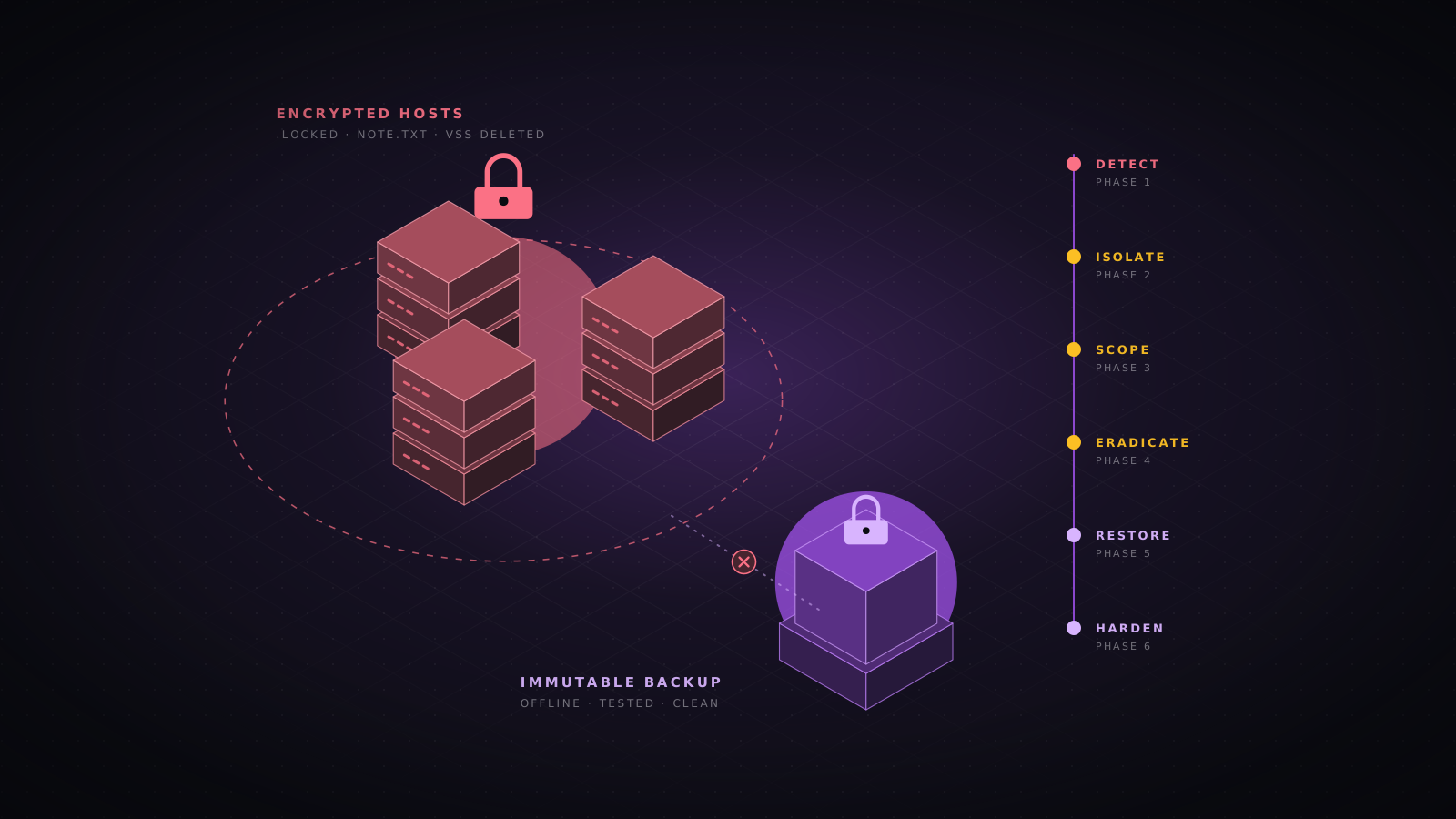
In a ransomware case the encryption is the last step of an intrusion that usually began days or weeks earlier. Triage has two jobs at once: limit the damage now, and find the entry point and the accounts used so the attacker cannot simply do it again after you restore.
- Photograph the ransom note and record the file extension and note name. ID Ransomware and the No More Ransom project identify the family and list any free decryptors.
- Find when encryption started by sorting the MFT or USN journal output for the new extension. The earliest encrypted file and the process that wrote it lead you to the encryptor binary and the account that ran it.
- Look for the preparation steps in 4688, Sysmon and PowerShell logs: vssadmin delete shadows, wmic shadowcopy delete, wbadmin delete catalog, bcdedit with recoveryenabled no, and services for backup and database software being stopped.
- Check for exfiltration before encryption. Most groups now steal data first. Look for rclone, MEGAsync, WinSCP, restic or cloud sync clients, rclone.conf files in AppData, large archives in staging folders, and outbound volume in SRUM.
- Identify the deployment method: Group Policy scheduled tasks, PsExec, WMI or a remote management tool pushing the encryptor across the network all point to a compromised domain administrator account.
- Confirm backups are intact and offline before you rely on them. Attackers target backup consoles and delete repositories first.
Import-Csv E:\out\mft.csv |
  Where-Object { $_.Extension -eq '.lockbit' } |
  Sort-Object { [datetime]$_.Created0x10 } |
  Select-Object -First 20 ParentPath, FileName, Created0x10, LastModified0x10
Build the timeline
The timeline is the main product of triage. It turns hundreds of observations into a story: initial access, execution, persistence, privilege escalation, lateral movement, collection, exfiltration and impact. Keep it in UTC, cite the artifact for every entry, and separate what you have confirmed from what you are inferring.
log2timeline.py --storage-file host01.plaso E:\IR-2026-031\HOST01\tout\HOST01.vhdx
psort.py -o dynamic -w host01-timeline.csv host01.plaso "date > '2026-10-20 00:00:00' AND date < '2026-10-28 00:00:00'"
For speed, load the CSVs from EvtxECmd, MFTECmd, PECmd, AmcacheParser and Hayabusa into Timeline Explorer side by side, filter to the incident window, and copy the meaningful rows into a simple table with columns for time, host, account, activity, source artifact and confidence. That table is what you will hand to management, legal, insurers and the authorities.
| Time (UTC) | Host | Activity | Source |
|---|---|---|---|
| 2026-10-21 08:14:09 | HOST01 | User bob opens invoice.iso from Downloads (Mark of the Web from a file sharing site) | MFT, Zone.Identifier, LNK |
| 2026-10-21 08:14:31 | HOST01 | rundll32.exe loads a DLL from the mounted ISO; outbound HTTPS to a new domain | Sysmon 1 and 3, DNS cache |
| 2026-10-21 08:20:02 | HOST01 | Scheduled task created to run the DLL at logon | 4698, TaskScheduler 106 |
| 2026-10-22 01:47:55 | HOST01 | LSASS memory accessed by rundll32.exe with comsvcs.dll | Sysmon 10, 4688 |
| 2026-10-22 02:03:12 | FS02 | Network logon as svc_backup from HOST01, PSEXESVC installed | 4624 type 3, 7045 |
Containment, eradication and handoff
Contain in one coordinated move once you understand the scope. Partial containment, such as resetting one password while the attacker still has a backdoor elsewhere, mostly teaches the attacker to hide better.
- Isolate every confirmed host through EDR or the network, keeping them powered on until collection is complete.
- Block indicators at the perimeter, proxy, DNS and EDR: command and control domains and addresses, file hashes and malicious certificates.
- Disable compromised accounts and reset their passwords twice. If a domain administrator or domain controller was compromised, plan a krbtgt reset (twice, with full replication between the two resets) and reset all privileged and service account credentials.
- Remove persistence you found on every host, using your sweep of indicators across the estate to find hosts you have not triaged.
- Rebuild compromised machines from known-good images rather than cleaning them. Cleaning misses what you did not find.
- Patch or close the initial access route: the vulnerable VPN, the exposed RDP, the phished account without MFA.
- Monitor closely for at least 30 days for the same indicators, the same accounts and the same techniques.
Hand off with a short report: executive summary, scope (hosts, accounts, data), timeline, root cause, indicators of compromise, actions taken and recommendations. Store the evidence and its hash list according to your retention policy; regulators, insurers and law enforcement may request it months later.
Quick reference checklist
- Open a case log in UTC; note who, what, when for every action.
- Record host identity, time zone, clock skew, uptime and logged-on users.
- Decide on containment; prefer EDR isolation over shutdown.
- Capture memory and hash it.
- Record processes with command lines and parents, network connections, DNS cache, SMB sessions and local admins.
- Run Autoruns and review scheduled tasks, services, WMI subscriptions, Run keys and Defender exclusions.
- Export all event logs and run Hayabusa or Chainsaw over them.
- Collect a triage image with KAPE or Velociraptor and parse it with the Eric Zimmerman tools.
- Review execution artifacts: prefetch, Amcache, ShimCache, BAM, SRUM, PowerShell history.
- Review the MFT and USN journal for tool drops, staging and deletion.
- Trace lateral movement in both directions and assume cached credentials are stolen.
- Build the timeline, sweep the estate for indicators, then contain in one coordinated move.
- Windows
- DFIR
- Incident response
- Triage
- Forensics
- KAPE
- Velociraptor
- Volatility
- Event logs
- Threat hunting